Tuesday, March 26, 2013

active color


CSS "active" Selector


<div id="centeredmenu">


<ui>
<li><a href="menu1.html" class="active">menu1</a></li>
<li><a href="menu2.html">menu2</a></li>
<li><a href="menu3.html">menu3</a></li>
<li><a href="menu4.html">menu4</a></li>
</ui>
 </div>

-------

CSS

#centeredmenu ul li a.active,
#centeredmenu ul li a.active:hover {
   color:#fff;
   background:#000; /* change Hover Color? #6CF */
   font-weight:bold;
}


CSS "active" Selector
http://www.w3schools.com/cssref/sel_active.asp


The :active selector is used to select and style the active link.
A link becomes active when you click on it.

Tip: Use the :link selector to style links to unvisited pages, the :visited selector to style links to visited pages, and the :hover selector to style links when you mouse over them.

Note: :active MUST come after :hover (if present) in the CSS definition in order to be effective!

Tuesday, March 19, 2013

CSS Layouts: 40+ Tutorials, Tips, Demos and Best Practices

http://www.noupe.com/css/css-layouts-40-tutorials-tips-demos-and-best-practices.html


You might be interested to check other CSS related posts:
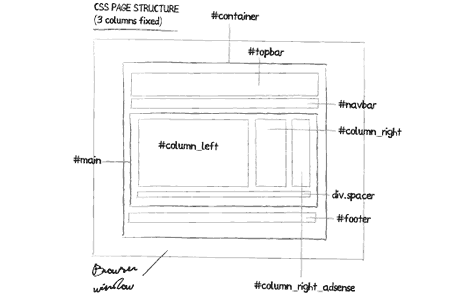
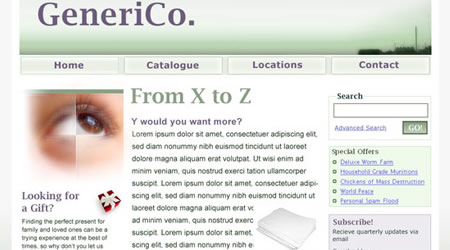
1-Three column fixed layout structure using CSS- This post explains how to realize an HTML/CSS basic structure to design a simple three column fixed page layout with standard elements (logo top bar, navigation bar, text stage, center column for post categories and right column to insert Google AdSense 120X600 ads), to use in your projects.
css layouts

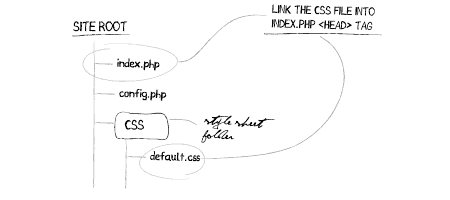
2-Design page layout using CSS- How to design page’s layout for your site using a css file.
css layouts

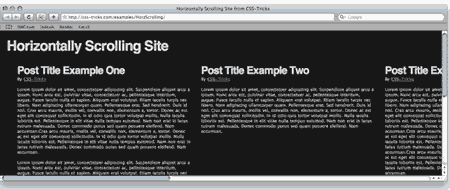
3-How To Create a Horizontally Scrolling Site- Different techniques for creating horizontally scrolling layouts.
css layouts

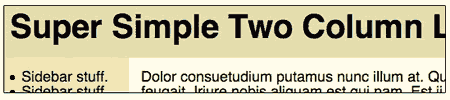
4-Super Simple Two Column Layout- Different techniques for creating horizontally scrolling layouts.
css layouts

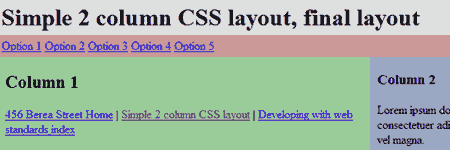
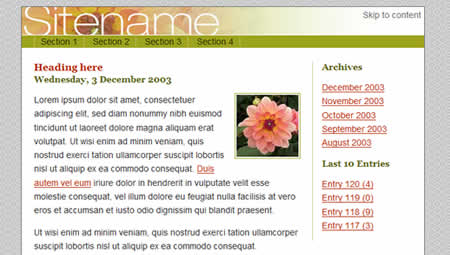
5-Simple 2 column CSS layout- This is a tutorial on how to use CSS to create a simple two column layout. The layout consists of a header, a horizontal navigation bar, a main content column, a sidebar, and a footer. It is also horizontally centered in the browser window.
css layouts

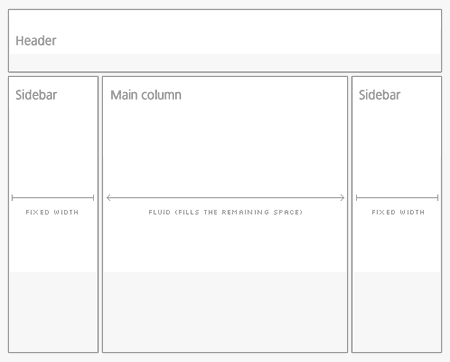
6-The holy grail layout – 3 columns and a lot less problems - This is a article discuss the three columns – two fixed-width sidebars and a fluid center column, all while keeping the markup clean and semantic, and most importantly well structured.
css layouts

7-CSS Centering 101- How to center a fixed-width layout using CSS
<body>
  <div id="container">
    ...entire layout goes here...
  </div>
</body>
Using CSS, the following two rules force whatever is contained within #container to be centered:
body {
  text-align: center;
  }
#container {
  margin: 0 auto;
  width: xxxpx;
  text-align: left;
  }

8-Creating a CSS layout from scratch- This guide will attempt to take you step by step, through the process of creating a fully functioning CSS layout.
css layouts

9-Multi-Column Layouts Climb Out of the Box- Multiple columns, equal column heights, fixed or liquid center column, clean markup, and CSS.
css layouts

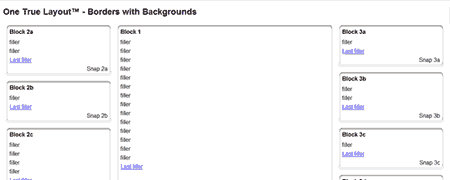
10- In search of the One True Layout- Total Layout Flexibility, Equal Height Columns, Vertical placement of elements across grids/columns. This article shows how to achieve each of these goals, and then how to combine them, creating what could be called the One True Layout
css layouts

11-From PSD to HTML, Building a Set of Website Designs Step by Step-The entire process of getting from Photoshop to completed HTML.
css layouts

12- 5 Tips for coding xhtml/css layouts- These are few tips that could help you out in the transition from table-based web design to standards compliant css based layouts.

13-Designing a CSS based template- This is the start of a step-by-step based tutorial about how to create a CSS based template page. This will be a tutorial consisting of several parts: part 1 covers the creation of the navigation buttons in Photoshop CS*, the 2nd part will be the creation of the background, next on the list is the header and layout of the page and the final part will be the implementation in CSS and XHTML.
css layouts

14-Breaking Out of the Box With CSS Layouts- If you understand how the grid works, you can fracture or abstract that grid to make your layout more dynamic and interesting. In achieving this goal (while supporting flexibility and maintainability), CSS designs have so much more to offer than table-based layouts. Jina Bolton explains how to acheive this goal.
css layouts

15-Advanced CSS Layouts: Step by Step- The ultimate goal of this tutorial is to create a CSS layout that exactly resembles the WebReference.com layout made with tables and also behaves well with small window sizes and large fonts.
css layouts

16-6 Keys to Understanding Modern CSS-based Layouts-
These are the six things that will help people understand CSS-based layouts: Box Model, Floated Columns, Sizing Using Ems, Image Replacement, Floated Navigation and Sprites.

17-Are you making these common blog layout mistakes?-
Discussing 4 mistakes in basic blog layout are all too common and all too easy to fix.

18-Page Layout-
A practical guide for positioing and floating elements in a CSS page layout.

19-Site in an Hour- Making Simple Work of Complex CSS Layouts
css layouts

The best Layouts Resources

Most of these demonstrations can be used without asking for permission. However, some will require email approval first. Just check each site for the copyright requirements before use.
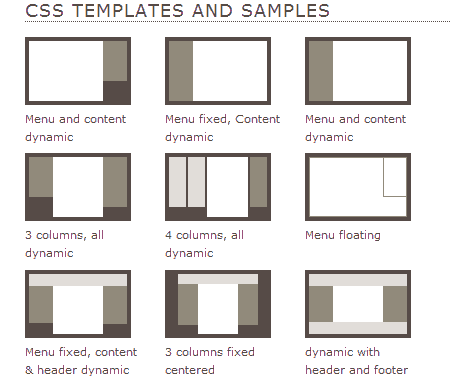
20-Sample CSS Page Layouts- Here are a range of CSS page layouts, including 2 column and 3 column layouts.
css layouts

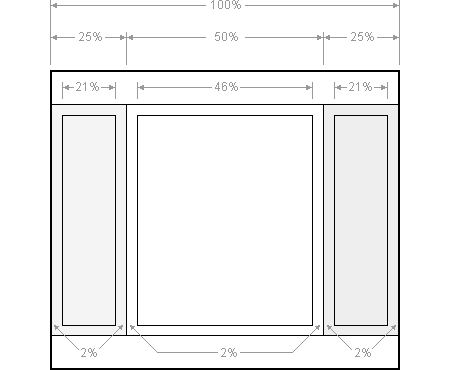
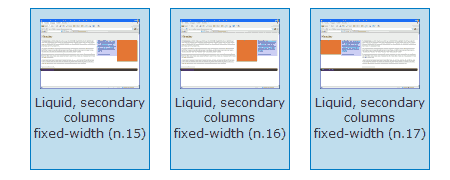
21-The Perfect 3 Column Liquid Layout (Percentage widths)- No CSS hacks. SEO friendly. No Images. No JavaScript. Cross-browser & iPhone compatible.
css layouts

css layouts

23-IM Layouts- IM Layouts is a simple CSS layout system. IM Layouts offer full Grade-A browser support.
css layouts

24-CSSplay - CSS Layout Listing
css layouts

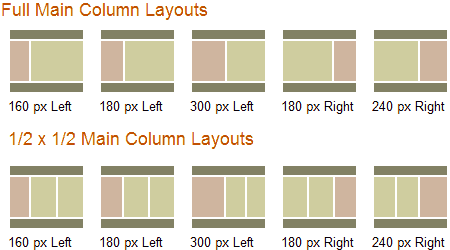
25-Layoutgala - Getting the maximum number of layouts based on the same markup, each with valid CSS and HTML, without hacks nor workaround and a good cross-browser compatibility. The result is a set of 40 layouts.
css layouts

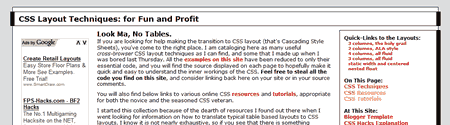
26-Glish- Many useful cross-browser CSS layout techniques
css layouts

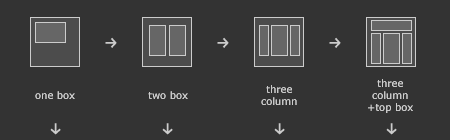
27-Thenoodleincident- CSS Boxes going from a simple single box, through 3 columns with a full width top box, all with variations.
css layouts

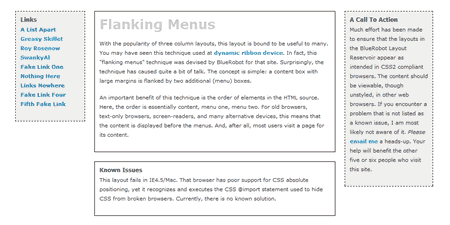
28-The Layout Reservoir- Many useful CSS layout techniques
css layouts


CSS: Positioning, z-index

http://www.w3schools.com/css/css_positioning.asp

http://www.w3schools.com/cssref/pr_pos_z-index.asp

https://developer.mozilla.org/en-US/docs/CSS/position


http://www.alistapart.com/articles/css-positioning-101/


Relative positioning
To position an element relatively 20px from the top and left of its normal position, the following CSS is used.
#two { position: relative; top: 20px; left: 20px; }
Note how the other elements are displayed as if "Two" were in its normal position and taking up space.

Absolute positioning

Elements that are positioned relatively are still considered to be in the normal flow of elements in the document.  In contrast, an element that is positioned absolutely is taken out of the flow and thus takes up no space when placing other elements.  The absolutely positioned element is positioned relative to nearest positioned ancestor.  If a positioned ancestor doesn't exist, the initial container is used.
In the example below, the blue ancestor div is positioned relative (so it becomes the nearest positioned ancestor) and box Two is positioned absolutely:
#ancestor { position: relative; background: #ddf; width: 500px; }
#two { position: absolute; top: 20px; left: 20px; }


If #ancestor had not been positioned relative, box Two would have appeared relative to the upper left corner of the page.

Fixed positioning

Fixed positioning is similar to absolute positioning, with the exception that the element's containing block is the viewport.  This is often used to create a floating element that stays in the same position even after scrolling the page.  In the example below the "One" box is fixed 80px from the top of the page and 20px from the left:
#one { position: fixed; top: 80px; left: 20px }
When viewing the top of the page, the position box appears in the upper left, and after scrolling, it remains in the same place relative to the viewport:
fixed-1.png
fixed-2.png


http://css-tricks.com/video-screencasts/110-quick-overview-of-css-position-values/


Lightbox & Widget Browser: Image Gallery


Simple way to add an image gallery (lightbox) in Dreamweaver:


The Widget Browser:


social widgets


social widgets


FACEBOOK: http://developers.facebook.com/docs/plugins/

TWITTER: https://dev.twitter.com/docs/embedded-timelines

twitter.com/about/resources/widgets

FLICKR: http://www.flickr.com/badge.gne


-----------------------------------------------------------
http://blog.hostbaby.com/2011/10/10-widgets-to-make-your-website-more-social/


10 Widgets to Make Your Website More Social

Everybody loves web widgets: mini web applications that can be embedded almost anywhere. But with so many widgets out there, it's hard to know which will enhance your website and engage your audience. Below are some of the most popular and social widgets available.
Note: Embedding a widget involves 'cut, copy, and paste' functions and a website that allows you to embed HTML code. If you are using HostBaby's Site Builder, you can embed any of these widgets in your widget sidebar or directly on a page.

Facebook's Like Button

The Like allows your visitors to see how many people "Like" you page. When clicked, it also sends a status update to the visitors' Facebook page so their friends can see what they 'Liked.' This is a great and easy way to increase your visibility on Facebook. You can set up the Facebook "Like" button here.

Twitter Widgets

Twitter offers 4 widgets you can put on your website. The Profile Widget Displays your most recent Twitter updates, the Search Widget displays the twitter search results of your choosing, the Favs widget shows off your favorite tweets and the List Widget allows you to put your favorite Twitter users in a single feed. You can set up any of the four here.

Widgetbox RSS Widget

This Widget allows you to syndicate any blog feed right on your website. This could be your blog or simply a blog that you think your visitors will enjoy. This is a great way to constantly refresh your site with new content without lifting a finger.Build a RSS Widget here.

Google +1

Adding a +1 button allows your fans to give you a boost in search ranking (the boost is mostly noticible within the visitors' Google network of friends, but that's not a bad thing). Clicking the +1 also updates your Google+ status. You can get theGoogle +1 button here.

StumbleUpon Badge

Tap into a the rabid and numerous StumbleUpon users by encouraging them to 'like" your page. The more people that like it, the more people will see it.StumbleUpon serves up random webpages based on user preferences. Warning: It's very addictive. StumbleUpon Badge
StumbleUpon also just added a new widget that will showcase your favorite 'stumbled' websites. You can get that here.

Flickr Slideshow

If you use Flickr (or even if you don't) you can embed any Flickr slideshow on your site. Simply navigate to the Flickr slideshow you want to embed, click the share menu. From there, grab the embed code or click "customize this HTML" if you want to specify the size of your slideshow. Grab the code and drop it into your website.

YouTube Videos

Never underestimate the power of video to make your website come alive. Sharing YouTube videos on your website will increase your views and hopefully your video "likes". Don't forget to encourage people to subscribe to your YouTube channel. In  order to embed a YouTube video on your site, simply click the 'share' button located below the YouTube video in question and then click "embed." Copy the code and then paste it on the page you want the video to appear.
Modifying Navigation in Dreamweaver Template


Modifying Navigation in Dreamweaver Template

Navigation Menu: Vertical or Horizontal

http://proquestcombo.safaribooksonline.com/book/web-design-and-development/9780133006018/8dot-using-styles-for-layout/ch08lev1sec5#X2ludGVybmFsX0ZsYXNoUmVhZGVyP3htbGlkPTk3ODAxMzMwMDYwMTglMkZjaDA4bGV2MXNlYzU=

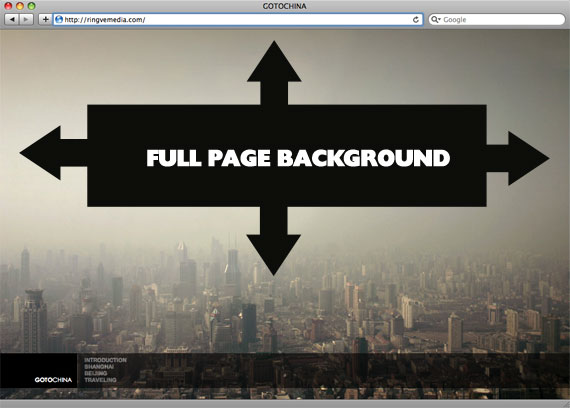
Full Page Background


http://css-tricks.com/perfect-full-page-background-image/

CSS-Only Technique #2

One rather simple way to handle this is to put an inline image on the page, fixed position it to the upper left, and give it a min-width and min-height of 100%, preserving it's aspect ratio.
<img src="images/bg.jpg" id="bg" alt="">
#bg {
  position: fixed; 
  top: 0; 
  left: 0; 
 
  /* Preserve aspet ratio */
  min-width: 100%;
  min-height: 100%;
}
However, this doesn't center the image and that's a pretty common desire here... So, we can fix that by wrapping the image in a div. That div we'll make twice as big as the browser window. Then the image will be placed, still preserving it's aspect ratio and covering the visible browser window, and the dead center of that.
<div id="bg">
  <img src="images/bg.jpg" alt="">
</div>
#bg {
  position: fixed; 
  top: -50%; 
  left: -50%; 
  width: 200%; 
  height: 200%;
}
#bg img {
  position: absolute; 
  top: 0; 
  left: 0; 
  right: 0; 
  bottom: 0; 
  margin: auto; 
  min-width: 50%;
  min-height: 50%;
}
Credit to Corey Worrell for the concept on this one.
Works in:
  • Safari / Chrome / Firefox (didn't test very far back, but recent versions are fine)
  • IE 8+
  • Opera (any version) and IE both fail in the same way (wrongly positioned, not sure why)
  • Peter VanWylen wrote in to say that if you add the image via JavaScript, the img needs to have width: auto; and height: auto; to work in IE 8, 9, or 10.